Ceili Summer ’26 Release Notes
22.5.2026
Intro
Here is a traditional Ceili’s summary of the upcoming new features and changes in Salesforce’s Summer ’26 release. Salesforce releases an update package three times a year, which contain major and minor reforms. On this page, we have collected the most important updates that may have an impact on your organization’s Salesforce operation, in a compact package.
The blog post briefly introduces each feature in its own paragraph, which also lists the concrete benefits customers will receive and the necessary measures, if there are any in the update. We are happy to help if you need support in implementing new features. You can contact support@ceili.fi
You can easily find the exact time when Salesforce will install the Summer ’26 Release in your own organization at: status.salesforce.com (Maintenance tab). You can display the information by entering the instance number of your Salesforce organization in the search field, which you can find in Salesforce in your company’s information.
Content:
General updates in Salesforce
Chatter Is Turned Off by Default in New Orgs
In Salesforce orgs that are created in Summer ’26 and later, Chatter is turned off by default. If you have features that require access to Chatter functionality or APIs, enable Chatter in Setup. For example, turn on Chatter to use Case Feed, include Chatter in an Experience Cloud site, or use Chatter in orgs where Slack is unsupported. This change doesn’t affect orgs created before Summer ’26.
Where: This change applies to Lightning Experience, Salesforce Classic, and all versions of the Salesforce mobile app in new orgs in Enterprise, Unlimited, and Developer editions.
Why: Salesforce channels are enabled by default for Lightning Experience in orgs created in Summer ’26 and later in Enterprise and Unlimited editions. With Salesforce channels, you can use Slack instead of Chatter to collaborate on record pages in Salesforce. You can enable Salesforce channels manually for Lightning Experience in Essentials, Professional, Performance, and Developer editions. These changes apply wherever Slack is available.
How: When Chatter is turned off, some unavailable features are:
- Chatter tab and feed
- Follow button
- Salesforce Chatter in the App Launcher
- Chatter groups and the Groups tab
- Chatter APIs
To enable Chatter, in Setup, search for and select Chatter Settings, click Edit, and select Enable.
You can use Salesforce channels to communicate in Slack internally and Chatter to communicate externally. To use Chatter for external communications, such as in Case Feed or an Experience Cloud site, enable Chatter. Then, in Setup, search for and select Feed Tracking. On the Feed Tracking page, select the objects where you want Chatter to appear.
Add Voice to Your Mobile App with Agentforce Voice
Agentforce Voice is now generally available, and with the Agentforce Mobile SDK, you can embed a full voice-to-voice AI agent experience directly into any iOS or Android app. Rather than routing customers through a phone system, your mobile app users can tap a button and speak naturally to an agent that understands their intent, takes action on live data, and hands off to a human with full context when needed.
Where: This change applies to the Agentforce Mobile SDK for iOS and Android in Enterprise, Performance, Unlimited, and Developer editions.
Customize Your Mobile App Home Page (Beta)
Give your users a fresh, personalized home page experience in the Salesforce Mobile App. While the old home page allowed for individual end-user customization, this new version grants you full administrative control to configure and manage the layout centrally. Your users can now see their most important information at a glance with cards for Pinned Reports, Recents, Favorites, My Calendar, Salesforce Events, and Tasks.
Where: This feature is available in the Salesforce mobile app in all editions.
How: In Setup, turn on Customizable Mobile Home Page (Beta) to replace the existing home page with the new Mobile Home. Use the Mobile Home Builder to customize the experience through a builder interface, or use the default configuration. Optionally, turn off Allow users to customize their Salesforce Mobile App home page to prevent individual overrides of the admin configuration.
Elevate In-Person Meetings with Mobile AI Transcription
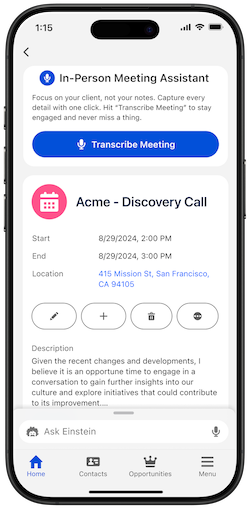
Focus entirely on your client with secure, AI-powered mobile transcription that automatically captures and syncs confidential in-person meeting notes to Salesforce, eliminating tedious manual data entry. After your meeting, once your data is synced, Einstein Conversation Insights creates summaries and highlights important details like customer concerns or mentions of competitors. It also helps you stay organized by setting up follow-up tasks and personalizing your outreach.
Where: This change applies to Einstein Conversation Insights in Lightning Experience. Einstein Conversation Insights is available in Enterprise, Performance, Unlimited, and Agentforce 1 Sales editions and as an add-on in Enterprise Edition for more than 10 users.
When: This feature will be available in iOS starting March 25, 2026 and Android starting April 06, 2026.
Who: This feature is available to users with access to Einstein Conversation Insights and the Salesforce mobile app.
Rotate Your Certificates More Frequently
If you use features that rely on certificates, update the related certificates more frequently. An industry-wide change decreases the maximum allowed Transport Layer Security (TLS) certificate lifespan over the next 3 years. As of March 15, 2026, the maximum lifespan for new certificates is 200 days. Also, Salesforce plans to stop public certificate rotation announcements on July 6, 2026.
Where: This change applies to Lightning Experience, Salesforce Classic, and all editions of the Salesforce mobile app. As we reach each milestone, the lifespans apply to new certificates that a public Certificate Authority (CA) signs, regardless of whether you, Salesforce, or a third party purchases the certificate. Existing certificates keep their expiration dates, and self-signed certificates aren’t subject to the new lifespans.
When: In August 2025, the Certification Authority Browser Forum (CA/Browser Forum) announced a phased approach to shorten the lifespan for new TLS certificates. That lifespan decreased from 398 days to 200 days on March 15, 2026. It decreases to 100 days on March 15, 2027 and to 47 days on March 15, 2029.
As certificates rotate more frequently, Salesforce plans to stop the existing announcements for certificate changes for first-party (1P) production orgs through the Certificate Changes Trailblazer Community group. Salesforce plans to end these announcements on July 6, 2026.
Why: Salesforce complies with the guidance of the CA/Browser Forum, the organization that sets most Web Public Key Infrastructure (WebPKI) rules. Their TLS Server Baseline Requirements change regularly. Those requirements are outside of Salesforce control, and certificate vendors are bound by the same rules.
How: Review your certificate use and plan to rotate the certificates that you own more frequently and stop using certificate pinning.
To receive notifications about upcoming certificate expirations for certificates that are stored in your org, assign the Expired Certificate Notification permission to specific admins. To automate the creation and update of self-signed and CA-signed certificates in Salesforce, use the Certificate Metadata API type.
Ensure Consistent Branding Across Your Reports and Dashboards with Brand Color Palettes
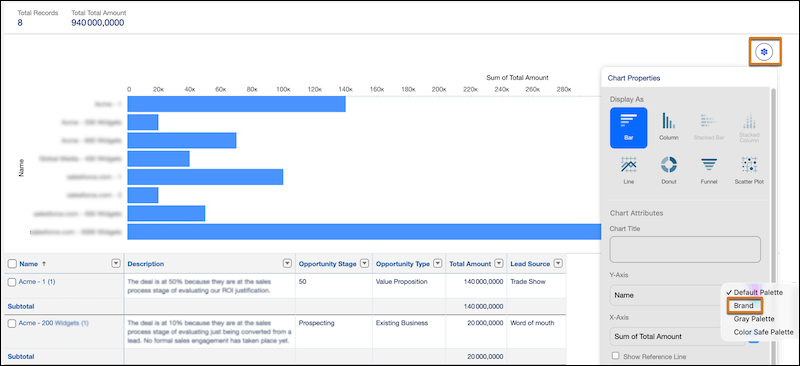
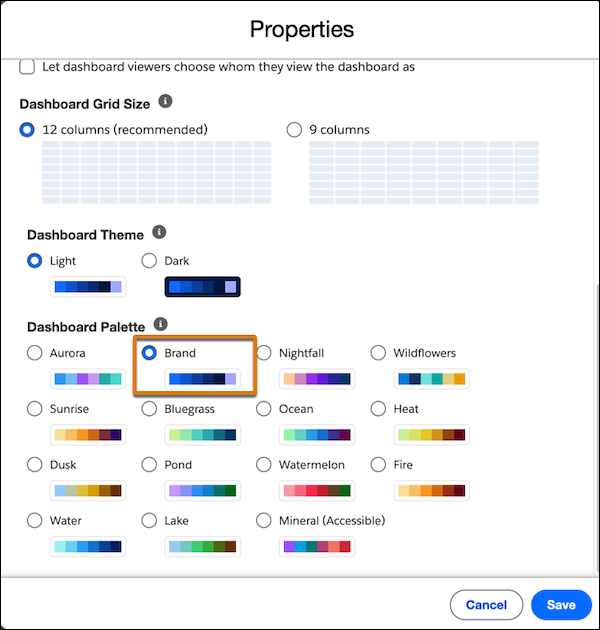
Reduce manual effort and maintain standardized, accessible data visualizations across your organization by using a brand color palette. Instead of manually updating colors in individual reports and dashboards, you can configure a brand palette once in your organization’s theme settings and apply it to report and dashboard charts.
Where: This change applies to Lightning Experience in Professional, Enterprise, and Unlimited editions.
How: From Setup, in the Quick Find box, enter Themes and select Themes and Branding. Set the brand color by creating or editing a theme, and then activate the theme.
To apply the brand color to your reports, select Brand in the report chart properties.
To apply the brand color to your dashboard widgets, select Brand in the dashboard properties.
Secure Excel Exports by Disabling Formulas
Protect your data and reduce security risks when exporting reports as Excel files. Add a straight apostrophe (‘) before field values that start with characters such as equals (=), plus (+), minus (-), etc., to prevent spreadsheet programs from misinterpreting these cell values as formulas. This protects from potential data manipulation or unintended code execution. Previously, this feature was supported only for CSV exports.
Where: This change applies to Lightning Experience in Professional, Enterprise, and Unlimited editions.
How: From Setup, in the Quick Find box, enter Reports and select Reports and Dashboards Settings. Select Disable Formulas in Exported Reports. In the text box, along with the default characters, you can enter additional characters to detect at the start of field values using commas to separate them.
Filter Dashboards with Multiple Text Values Simultaneously
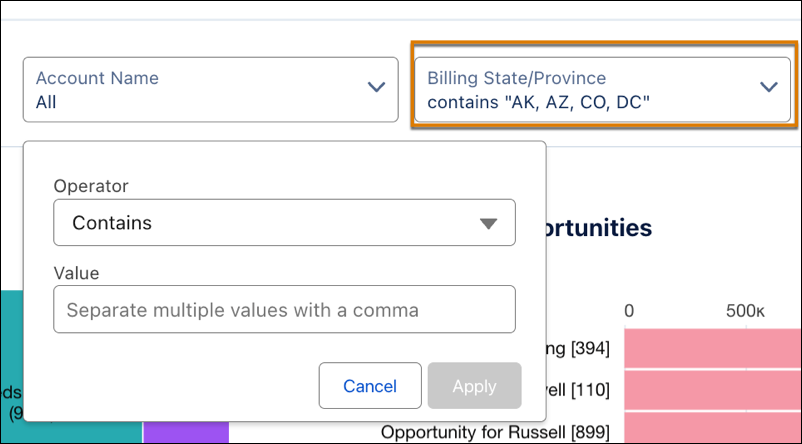
Narrow your data to exactly what you need by entering multiple text values into dashboard filters, including global filters. Previously, filters supported only single text entries or broad matching. Now, you can enter comma-separated values to view specific groups of records, such as several SKU numbers or customer names, all at once.
Where: This change applies to CRM Analytics in Lightning Experience and Salesforce Classic in Developer Edition and Enterprise, Performance, and Unlimited editions.
How: Create or edit a filter. You can use these operators to filter multiple text values, Contains, Does Not Contain, Starts With, Does Not Start With, Ends With, Does Not End With.
Save and preview the dashboard. Enter multiple text values, separated by commas, into your dashboard and global filters. CRM Analytics automatically trims extra spaces but treats commas within a single name as a separator.
Sales Cloud (Agentforce Sales)
Prepare for the Lightning Sync Retirement and Migrate to Einstein Activity Capture
In Winter ’21, Salesforce announced that Lightning Sync was no longer available in new orgs. If you use Lightning Sync, migrate to Einstein Activity Capture to continue syncing contacts and events between Microsoft® or Google applications and Salesforce. If you have Lightning Sync with Microsoft Office 365 and use Exchange Web Service as your authentication method, upgrade by August 2026 to avoid disruption. All other Lightning Sync integrations are required to migrate before Lightning Sync is retired in April 2027.
Where: Lightning Sync is available in Lightning Experience in Professional, Enterprise, Performance, Unlimited, and Developer editions with Sales and Service.
Who: This change affects Lightning Sync in all orgs except those using Government Cloud.
How: Follow the multi-step process to complete the migration. First, migrate to Einstein Activity Capture by using the Lightning Sync migration tool available in Setup. Second, assign users one of the Einstein Activity Capture permission set licenses. Next, confirm that users are in an active Einstein Activity Capture configuration or add them, if needed. Then, when you’re ready, turn off Lightning Sync.
Prepare for Activity 360 Reporting, Activity Metrics, and Activities Analytics Dashboard Retirement
Before these tools retire, Salesforce recommends turning on Sync Email as Salesforce Activity for Einstein Activity Capture and configuring reports to explore data captured from email.
Where: Activity 360 Reporting, Activity Metrics, and Activities Analytics Dashboard are available in Lightning Experience in Starter, Professional, Enterprise, Unlimited, Einstein 1 Sales, and Agentforce 1 Sales editions. They’re also available with the Einstein for Sales, Sales Engagement, and Revenue Intelligence add-ons.
Why: Starting in Summer ’25, Einstein Activity Capture can sync and store email data as Task and EmailMessage object records. With this new data structure you can explore and use email activity data with standard reports, SOQL, automation workflows, and APIs. Activity 360 Reporting, Activity Metrics, and Activities Analytics Dashboard aren’t available unless previously turned on. Additionally, data from these reporting tools that appears in other features, including Prospecting Center, Pipeline Inspection, and Einstein Conversation Insights, aren’t available unless previously configured. This change affects other features that use Einstein Activity Capture data, including Prospecting Center, Pipeline Inspection, and Einstein Conversation Insights. Objects related to Activity 360 Reporting data are also scheduled to retire: UnifiedEmail, UnifiedEmailParticipant, UnifiedMeeting, UnifiedMeetingParticipant, UnifiedTask, and UnifiedTaskParticipant.
Activity 360 Reporting, Activity Metrics, Activities Analytics Dashboard, and related data aren’t available. These tools aren’t compatible with email synced as activity data.
How: To turn on Sync Email as Salesforce Activity, update Einstein Activity Capture and migrate previously captured email. Use the Update & Migrate option available in Setup. Sync Email as Salesforce Activity is enabled by default if you turned on Einstein Activity Capture in Summer ’25 or later.
Verify Your Email Domain Ownership
To avoid disruption in email sent from Salesforce, verify the domains that you own with a DomainKeys Identified Mail (DKIM) key or an authorized email domain. As part of our ongoing efforts to strengthen the security of our email services, email domain verification is now mandatory. Salesforce no longer delivers emails from unverified domains, even if the email address is verified.
Where: This change applies to Lightning Experience and Salesforce Classic in all editions except Salesforce Free Suite and Database.com. This change has no impact on trial orgs.
This change doesn’t affect emails sent through Gmail™ and Office 365® (Outlook) integrations or via Einstein Activity Capture tool (“Inbox”). Emails that end in @gmail.com, @hotmail.com, or @outlook.com are also exempt from the domain-level verification requirement. And domain verification isn’t required for Marketing Cloud or Marketing Cloud Advanced emails.
When: In existing orgs, Salesforce generated a temporary allowlist of email-sending domains used over several weeks in January and February 2026. For more information, see Determine Your Temporarily Allowlisted Email-Sending Domains.
Salesforce is rolling out this change gradually. The rollout began in March 2026. See Mandatory Sending-Email Domain Verification Timeline.
Why: This change affects emails sent from Salesforce and related automations with an email-sending domain that Salesforce doesn’t own, including system-generated emails.
For example, if your users’ email addresses are in the format name@example.com, verify that you own example.com. Similarly, Salesforce can’t send system-generated emails from an organization-wide address with an unverified domain, even if the individual email address is verified.
For more information, see Spring ’26 Email-Sending Domain Verification Requirement.
How: Verify each of your email-sending domains. Each domain and subdomain requires separate verification via an active DKIM key. If you can’t use a DKIM key, configure a verified entry in the Authorized Email Domains list in Setup.
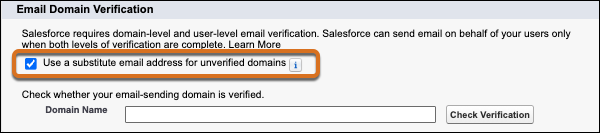
To minimize disruption, enable a substitute email address for unverified domains. On the Deliverability page in Setup, select Use a substitute email address for unverified domains, and then save your changes. That setting is available when email domain verification is required in your org.
Keep Email Flowing for Users with Unverified Domains
Enable users whose email domains you can’t verify—such as users with public email addresses, consultants, and site users—to send email from Salesforce. With your substitute email address, the user’s display name remains unchanged, but the From address uses email@UniqueId.sfcustomeremail.com, where UniqueId is your org ID or Experience Cloud site ID. This option also applies to system-generated emails and emails sent via shared email accounts with an unverified domain.
Where: This change applies to Lightning Experience and Salesforce Classic in all editions except Salesforce Free Suite and Database.com. This change has no impact on trial orgs.
When: Salesforce plans to make this feature available in late April 2026.
Why: Consultants, Experience Cloud site users, and Salesforce Site users often have email domains that you can’t add to your verified list. And you can’t verify the domains for public email addresses, such as yahoo.com. When you enable this feature, those users can send email from Salesforce while preserving their display names.
How: From Setup, in the Quick Find box, enter Deliverability, and then select Deliverability. Select Use a substitute email address for unverified domains, and then save your changes.
Check Your Domain’s Verification Status
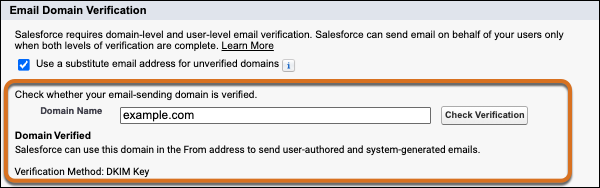
To avoid email delivery failures for emails sent from Salesforce, check your domain’s verification status. Salesforce now sends emails only from verified domains.
Where: This change applies to Lightning Experience and Salesforce Classic in all editions except Database.com.
How: From Setup, in the Quick Find box, enter Deliverability, and then select Deliverability. In the Domain Verification section, for Domain Name, enter your email-sending domain, such as example.com or sub-domain.example.com, and then click Check Verification.
Adopt Authorized Email Domains (Release Update)
If you previously worked with Salesforce Customer Support to disable email change verifications, set up authorized email domains instead. Salesforce is retiring the existing exemption process for disabling this feature, and authorized email domains provide the same benefit. First available in Spring ’26, this update is enforced in Winter ’27.
Where: This change applies to Lightning Experience, Salesforce Classic, and the Salesforce mobile app in all editions.
When: Salesforce enforces this update in Winter ’27. To get the major release upgrade date for your instance, go to Trust Status, search for your My Domain name or instance, and click the maintenance tab.
Why: The process to disable email change verification relied on a manual change by Salesforce Customer Support, which created operational inefficiencies and potential risks. With authorized email domains, you simplify the onboarding process for new users by using domain-level email verification. Email verification is bypassed for users with email addresses on a domain that you trust.
How: To review this update, from Setup, in the Quick Find box, enter Release Updates, and then select Release Updates. For Adopt Authorized Email Domains, follow the testing and activation steps.
DKIM Signatures Protect the Reply-To Header
When you sign email sent by Salesforce with a DomainKeys Identified Mail (DKIM) key, the signature configuration now includes the Reply-To header. To protect against conversation hijacking, this change prevents modification of the Reply-To address during delivery. If you use DKIM keys, you get this benefit automatically. Otherwise, set up DKIM keys to sign outgoing email sent by Salesforce.
Where: This change applies to Lightning Experience and Salesforce Classic in all editions except Salesforce Free Suite and Database.com.
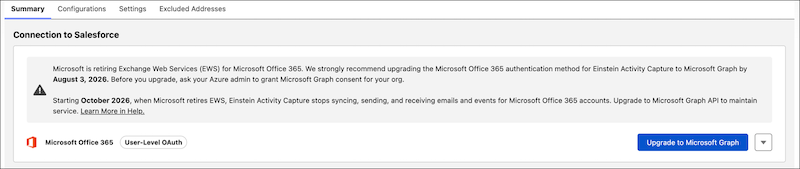
Upgrade Microsoft 365 Authentication in Einstein Activity Capture to Microsoft Graph
Transition your Einstein Activity Capture’s Microsoft Office 365 authentication to Microsoft Graph by August 3, 2026, to keep your data syncing without disruption when Microsoft retires Exchange Web Services (EWS) in October 2026. Microsoft Graph is the new, secure, and scalable standard for authentication. Proactive notifications and a single-click tool make the upgrade process smooth.
Where: This feature is available in Lightning Experience in Starter, Professional, Enterprise, Unlimited, Einstein 1 Sales, and Agentforce 1 Sales editions. It’s also available with the Einstein for Sales, Sales Engagement, and Revenue Intelligence add-ons.
When: This feature is available starting in February 2026.
Who: The upgrade is available if Einstein Activity Capture is configured to use Microsoft 365. If you’re setting up Einstein Activity Capture with Microsoft Office 365 starting in Spring ’26, you’re automatically authenticated by using Microsoft Graph.
Why: This upgrade is essential to align with Microsoft’s evolving security standards and to avoid potential disruptions as EWS reaches its end of life in October 2026. By transitioning to Microsoft Graph, Salesforce makes sure that your organization remains compliant and competitive, with improved support for modern features and enhanced user-level authentication.
How: Before and during the upgrade, make sure that your Azure admin has granted Microsoft Graph consent. Then, use the upgrade tool to authorize the connection and complete the transition.
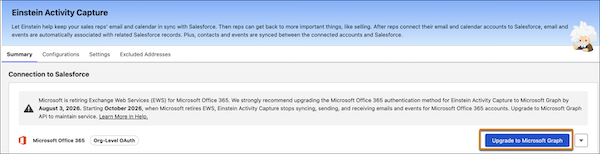
If Einstein Activity Capture is configured to use User-Level OAuth, users must reconnect to their Microsoft 365 accounts to complete the connection upgrade.
Migrate from Lightning Sync with Microsoft® Exchange Web Services to Einstein Activity Capture Before August 2026
Microsoft announced the retirement of Exchange Web Services (EWS) for Microsoft Office 365 starting October 2026. Lightning Sync configurations that use EWS won’t capture or sync data after this retirement. To avoid service disruption, use the Lightning Sync migration tool to move to Einstein Activity Capture and upgrade to the Microsoft Graph authentication method before August 2026.
Where: Lightning Sync is available in Lightning Experience in Professional, Enterprise, Performance, Unlimited, and Developer editions with Sales and Service.
Who: This change affects Lightning Sync configurations that use org-wide OAuth 2.0 with EWS to connect to Microsoft Office 365 or Microsoft Exchange Service Account.
How: Follow the multi-step process to complete the migration. First, migrate to Einstein Activity Capture by using the Lightning Sync migration tool available in Setup. Second, assign users one of the Einstein Activity Capture permission set licenses. Next, confirm that users are in an active Einstein Activity Capture configuration or add them, if needed. Then, when you’re ready, turn off Lightning Sync.
Finally, upgrade Einstein Activity Capture to connect your accounts using Microsoft Graph.
Control Which Fields Receive Autonomous Updates
Specify the individual fields that the Sales Management agent can update on the seller’s behalf by modifying the Process Field Update Suggestions flow. Give your agent the ability to update certain fields on its own while it continues to generate suggestions for other fields.
Where: This change applies to Lightning Experience in Enterprise, Performance, and Unlimited editions with Foundations and the Agentforce for Sales or Agentforce for an Industry add-on license, or included in Agentforce 1 Sales or an Industry Edition. Requires each user to have the Agentforce for Sales or Agentforce for an Industry add-on to access the actions.
When: This change became available starting in April 2026.
How: In the Process Field Update Suggestions flow, specify the fields that you want the agent to update in the Field API Names for Custom Autonomous Updates parameter on the Get or Execute Field Update Suggestion action element.
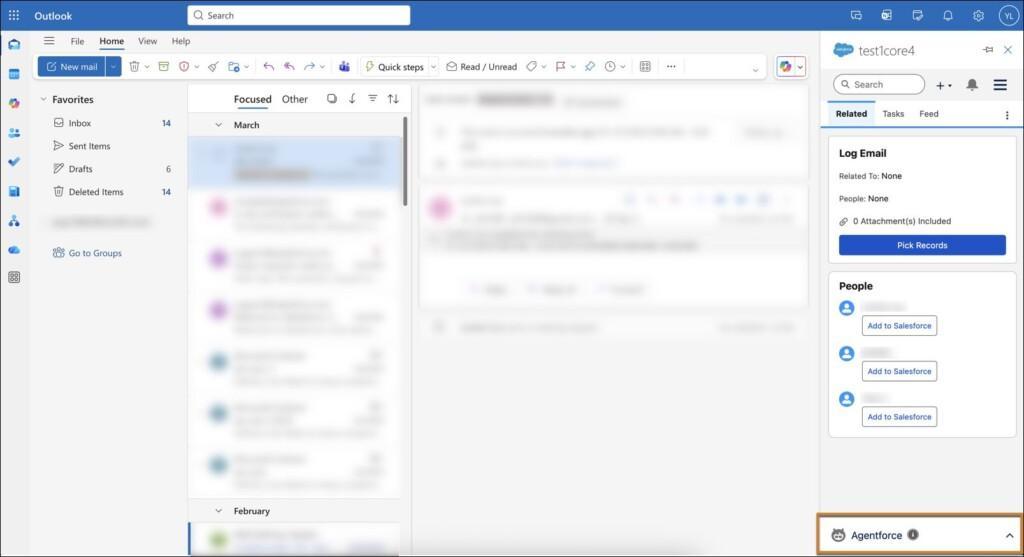
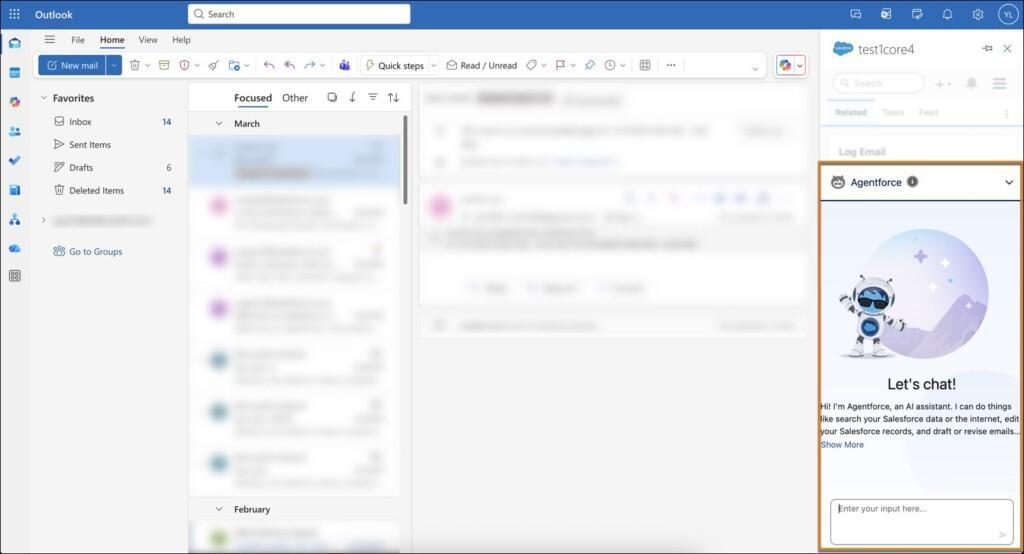
Access Agentforce from Your Outlook Integration
Leverage the power of Agentforce directly from your Outlook integration to prepare for meetings, summarize records, and trigger custom actions.
Where: This change applies to Lightning Experience and Salesforce Classic in Essentials, Group, Professional, Enterprise, Performance, Unlimited, and Developer editions.
When: This change is available on a rolling basis starting February 2026.
How: If Agentforce is enabled, it automatically appears in your Outlook integration. Click Agentforce to start using it.
Service Cloud (Agentforce Service)
Draft Contextual Case Comments Instantly with Agentforce
Your service reps can now generate professional and contextual case comments using natural language prompts. The out-of-the-box templates provide consistent communication by grounding responses in case history, customer interactions, and knowledge articles. Reduce the time your users spend on manual writing and ensure a standardized approach to case management.
Where: This change applies to Lightning Experience in Enterprise, Performance, Unlimited, and Developer editions.
Who: Your Agentforce Agent users must have the Create permission on the Case Comment object and access to specific case records to use this feature.
How: Deploy the Case Comment Generation template and ensure the action receives the Case ID as an input variable. You can also customize these templates for specific case types and set logic for public or internal visibility.
Find Case Experts Instantly with Agentforce Actions
Your service reps can now identify the best available experts for complex cases using a specialized Agentforce Action. Find Case Expert analyzes case context, historical resolution patterns, and real-time availability to suggest three to five ranked professionals with specific reasoning. These recommendations help your reps resolve issues faster by facilitating immediate collaboration through Slack or seamless case reassignment.
Where: This change applies to Lightning Experience in Professional, Enterprise, Performance, Unlimited, and Developer editions.
Why: Service reps often face specialized issues that lead to incorrect routing and delayed resolutions. Find Case Expert uses natural language processing to extract keywords from case subjects and descriptions, comparing them against expert profiles and performance metrics. By tracking historical outcomes, the feature ensures that experts with the highest success rates for specific issues are prioritized.
How: Configure the Find Case Expert Agentforce Action to enable the matching engine and ranking algorithm. Once active, your reps can invoke the action directly from a case to view recommended experts and choose to message them using Slack, add them to a case team, or reassign the record.
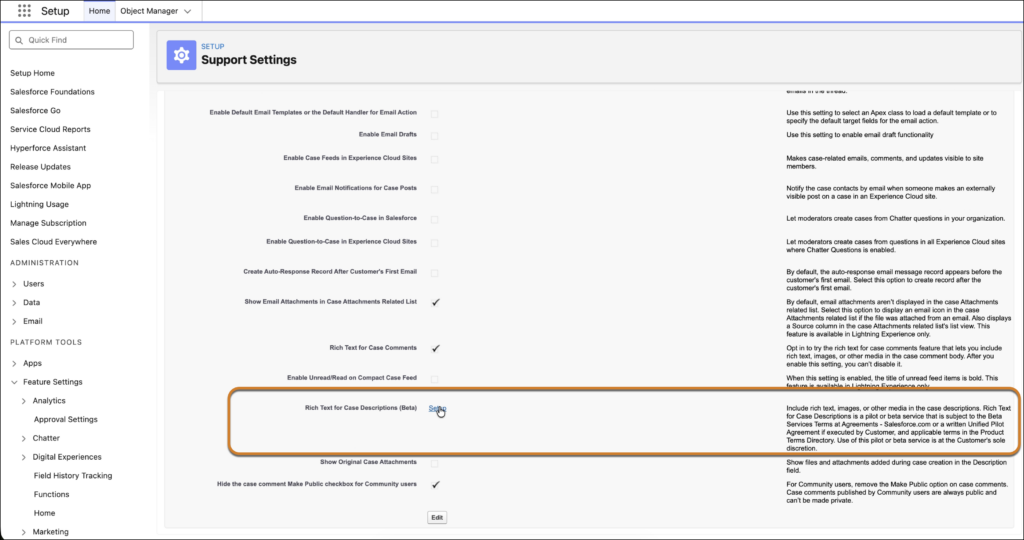
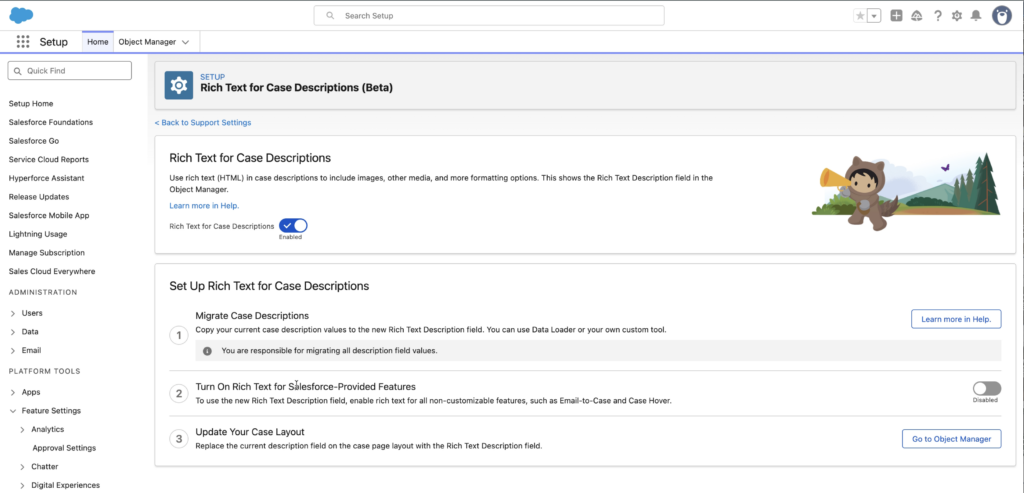
Illustrate Complex Customer Issues with Rich Text Case Descriptions (Beta)
Support reps can now use a rich text editor to capture detailed problem statements with ease. Reps can add images, format text with bullets and numbering, and include tables or URL links directly within the case description. These enhanced descriptions provide better context for Service Assistant and Case Summary to generate accurate results.
Where: This change applies to Lighting Experience in Developer, Enterprise, Unlimited, Performance, and Professional editions.
Why: Standard plain text descriptions often truncate content or lose important formatting and images from email-to-case submissions. By using the rich text area, your reps reduce back-and-forth communication with customers, which helps lower average handle time and time to resolution.
How: In Setup, search for Support Settings and select Support Settings. In the Support Settings page select the Setup link for Rich Text for Case Description. In the Rich Text for Case Description window, turn on Rich Text for Cases Description. Follow the instructions on the page to complete the setup.
Manage Duplicate Cases Proactively with Enhanced Case Merge (Beta)
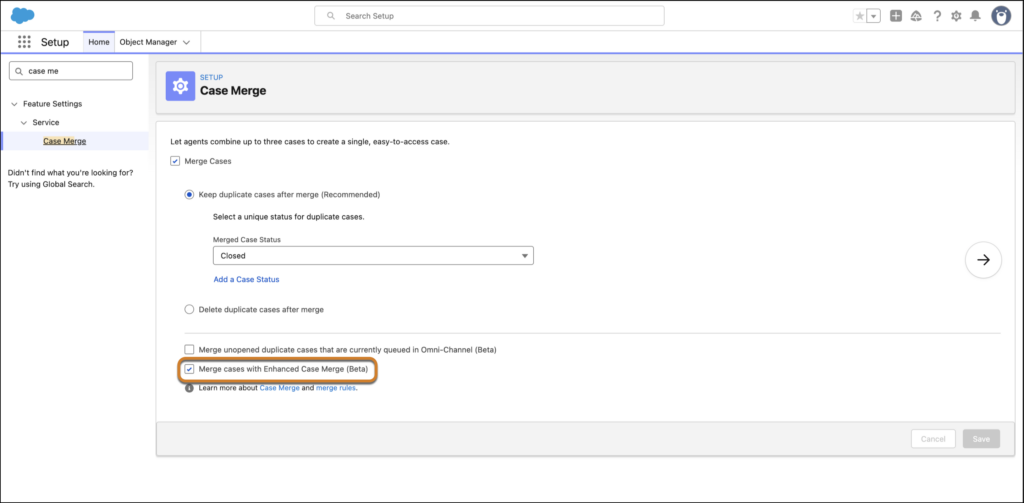
Help your reps maintain a clean database and increase productivity by identifying and consolidating duplicate cases. Create custom matching rules that will help you surface potential cases for case merge proactively on case load. Add the Duplicate Cases lightning web component to the case page so your reps can also see and act on real-time suggestions directly from the case page.
Where: This change applies to Lightning Experience in Enterprise, Performance, Unlimited, and Developer editions.
Why: Manual duplicate management often requires reps to sift through massive lists of open cases, which leads to human error and fragmented customer histories. Your reps can merge cases from the case page to move from reactive cleanup to proactive prevention.
How: Contact Salesforce to enable the feature. In setup, search for Case Merge and Select Case Merge. In the Case Merge window select the Merge Cases with Enhanced Case Merge checkbox. You can create and manage custom matching rules for the Case object, using a combination of standard and custom fields. To show suggestions to your agents, add the Duplicate Cases lightning web component to the Case record page. This update also allows you to set specific conditions for when a merge rule executes.
Draft Email Replies From Multiple Knowledge Articles
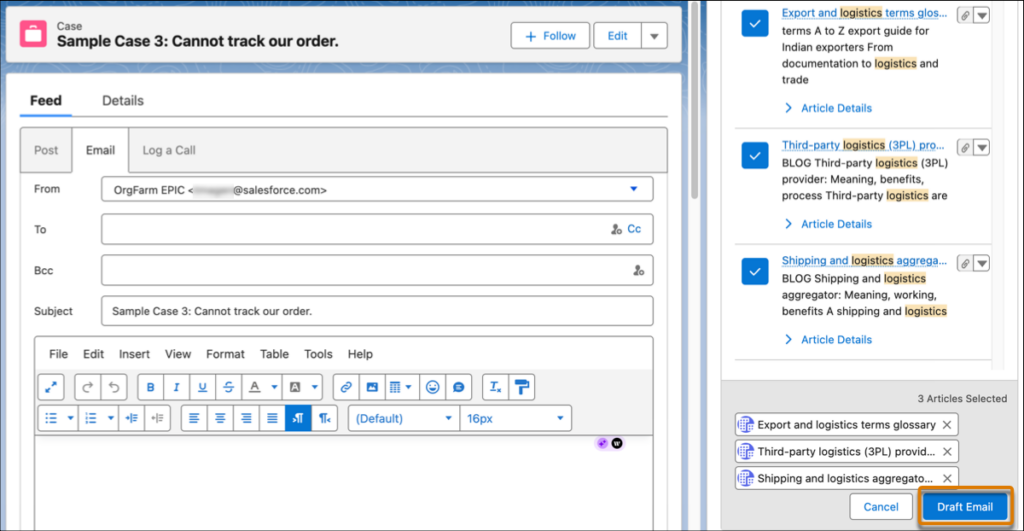
Generate comprehensive service email drafts grounded on relevant knowledge articles. You can select up to three most relevant knowledge articles so your email reply is backed by accurate information. Knowledge Grounded Email Response (KGER) reduces manual email drafting time by providing a detailed starting point that you can review and edit before sending.
Where: This feature is available in Lightning Experience in Enterprise and Unlimited editions with the Agentforce for Service add-on or Agentforce 1 edition. To purchase the Agentforce for Service add-on or Agentforce 1, contact your Salesforce account executive.
How: On the Case page, review the recommended articles in the Knowledge section. From the actions menu, click Draft Einstein Email from Multiple Articles. Select up to three articles that are relevant to the case, and then click Draft Email.
Marketing Cloud (Agentforce Marketing)
Build and Grow Your Audience
Now it’s easier than ever to create signup forms for your marketing channels with an out-of-the-box flow template that offers a guided setup. Plus, marketers can now target specific people and bypass complex segment logic by creating actionable lists.
Where: These changes apply to Salesforce Enterprise and Unlimited editions with Marketing Cloud Next Growth and Advanced editions.
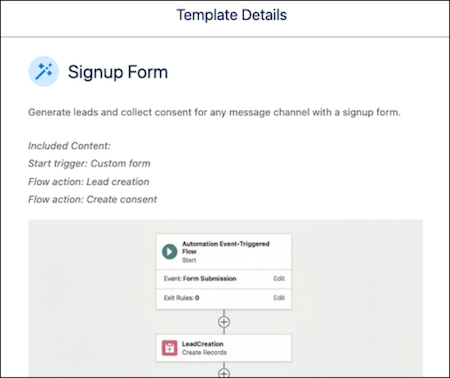
Create Signup Form Campaigns More Efficiently
Easily launch lead capture campaigns and securely gather consent data by starting from a flow template. This new guided setup removes the complexity of building flows, forms, and campaigns separately. Marketers can easily configure data collection, consent management, and form fields directly from a single interface.
Create Lists Quickly for Specific Marketing Goals
Sometimes you know exactly who you want to reach. Skip the complex segmentation logic and use actionable lists to send highly targeted campaigns to a fixed audience of leads or contacts. Build a list quickly by importing a CSV, or manually add members as needed. For example, create a list of leads based on signups from a trade show, and then send a welcome email or promotion to the list.
Create and Design Content with Ease
Get more control over how your marketing content looks, reads, and reaches global audiences. Strengthen brand consistency with custom web fonts, go multilingual with content variants, and tap into live Salesforce data for deeper personalization. Plus, capture web tracking consent with customizable banners in Salesforce CMS and expand your reach with plain text email support.
Where: These changes apply to Salesforce Enterprise and Unlimited editions with Marketing Cloud Next Growth and Advanced editions.
Design and Customize Consent Banners for Web Tracking in Salesforce CMS
Marketers can now create banners in Salesforce CMS that capture consent for web tracking. You can select different banners for different external sites that you track, giving your team more control over the design and banner content. All marketing landing pages use the same consent banner, but you can select different banners for different external sites that you track activity on. For example, design one banner for your home page and a different banner to use on product pages.
Control Personalization Logic in Landing Page Templates
Scale your web content by preconfiguring rule-based dynamic content and cross-object merge fields in landing page templates. New personalization settings in the content editor link variations across multiple components, including locked ones. This update helps launch campaign-ready pages with your brand’s data logic already baked in and prevents accidental edits to critical personalization rules.
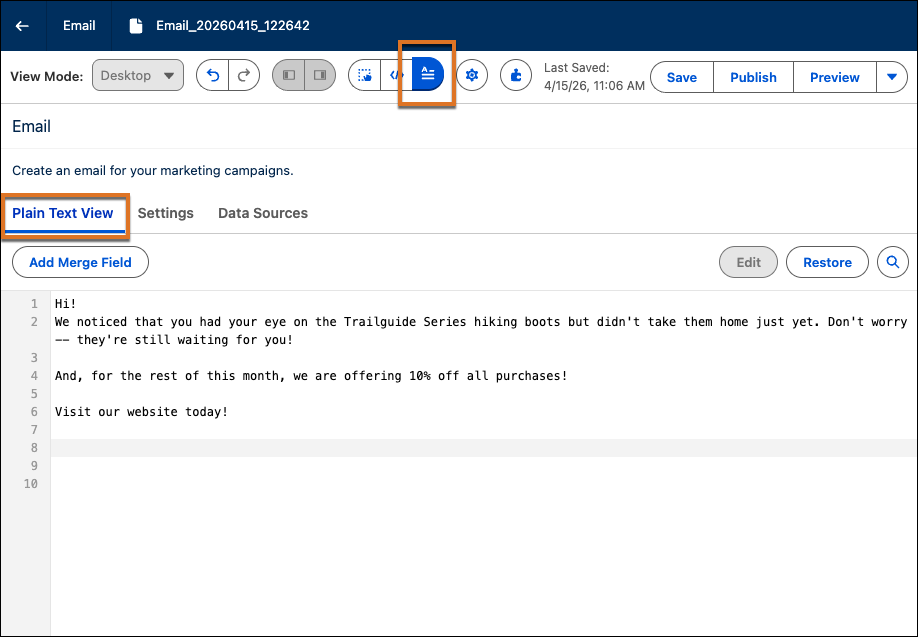
Send a Plain Text Version of Your Email
To boost engagement and ensure your reach across all viewing formats, such as secure email clients and screen readers, create a custom plain text version of your email messages. To edit message text, open an email in the editor, and select the Plain Text view.
Personalize Emails with New Data Sources
To use the most current business data to personalize emails, add merge fields to your message content that are based on two new data sources: Salesforce Objects and content variables. Reference live Salesforce Objects, such as Cases or Leads, as direct data sources. Add your own custom content variables to define dynamic placeholders in your content. These content variables can be mapped to any data source available in Salesforce Flow, including MuleSoft and HTTP connectors. Flow populates the content variables at runtime.
Deliver a Consistent Brand Experience with Custom Fonts
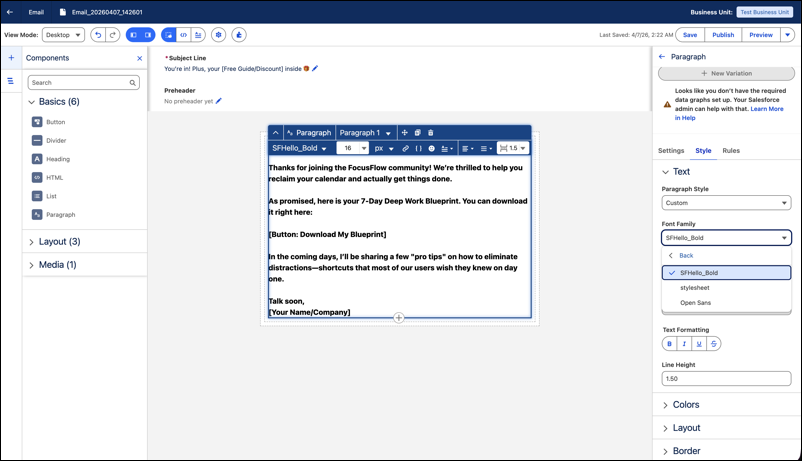
Add custom web fonts in Content Builder so your marketers can select them when creating emails, landing pages, forms, and templates. Define a required fallback font stack so content stays readable even if a custom font doesn’t load. Assign web-hosted fonts per business unit to keep every content piece on-brand and recognizable.
Scale Multilingual Campaigns with Content Variants
Localize emails, images, and content blocks, such as headers, footers, or promotional sections, with new language support in content variants. Marketers can manage translations within a single email or content block to simplify global campaigns. Deliver the version that matches each recipient’s language preference without duplicating campaigns.
View Marketing Engagement on Opportunity Records
Monitor how contacts who are related to an opportunity have interacted with your marketing campaign assets—directly from the opportunity record. Sales reps can use this Unified Engagement History dashboard to visualize data related to emails, forms, and page views.
Where: This change applies to Lightning Experience in:
- Marketing Cloud Next Growth and Advanced editions with the Salesforce Foundations add-on
- Marketing Cloud Account Engagement Growth, Plus, Advanced, or Premium editions with the Salesforce Foundations add-on
- Any Marketing Cloud Engagement+ edition with the Salesforce Foundations add-on
When: This feature becomes available later in Summer ’26.
Align Marketing and Sales Teams
Identify buying groups and nurture opportunities with the new Agentforce Account Nurturing Agent. Maintain tone, voice, and brand consistency with enhancements to Distributed Marketing and Alerts. Plus, sales users can use the new Distributed Marketing Agent to find the right email templates and get engagement insights on distributed messages.
Where: These changes apply to Salesforce Enterprise and Unlimited editions with Marketing Cloud Next Growth and Advanced editions.
Maintain Compliance and Track Engagement with Distributed Marketing and Alerts
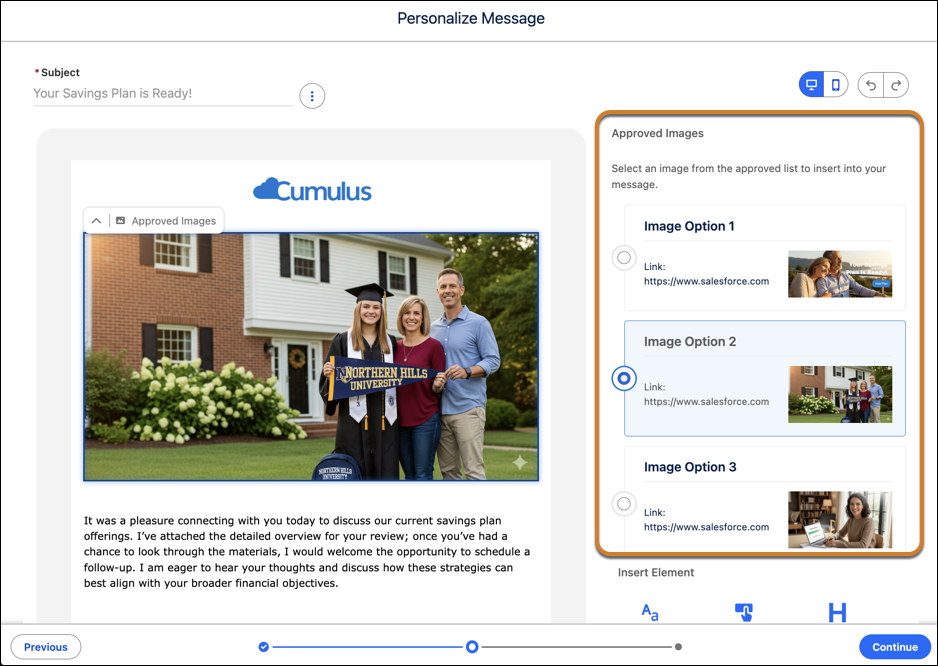
Marketers can now preapprove images and phrases for use in email templates and assign the ability to send on behalf of specific people. Plus, sales users can now preview default merge field data and use the new Distributed Sends dashboard to track 1-to-1 emails and bulk campaigns.
Get Insights on Distributed Marketing Messages
With the new Distributed Marketing Agent, sales users can access engagement insights and find marketing-approved email templates. They can also personalize each template within Distributed Marketing and Alerts by using a precurated flow and campaign.
Identify Buying Groups with the Account Nurturing Agent
The Account Nurturing Agent helps marketing and sales teams focus on high-intent deals. Identify buying groups on existing accounts, get engagement insights for key contacts, and summarize account-level sentiment. To deploy the Account Nurturing Agent for your team, use the new agent template available in Agentforce Builder.
Scale and Manage Your Marketing Operations
Marketing admins can now manage a growing business and marketers can make content from one business unit available to others with these updates that we’re releasing for Summer ’26.
Where: These changes apply to Salesforce Enterprise and Unlimited editions with Marketing Cloud Next Advanced edition.
Why: Business units include these enhancements:
- Create up to 150 business units.
- Deactivate obsolete business units.
- Assign web-hosted custom fonts to each business unit.
- Maintain brand consistency by posting content from a business unit to the common assets library so that other business units can copy that content to their own workspaces.
Other Changes in Marketing Cloud Next
Where: These changes apply to Salesforce Enterprise and Unlimited editions with Marketing Cloud Next Growth and Advanced editions.
Copy Stakeholders on Unified Messaging Emails
To keep entire groups informed of business exchanges, add internal or external email addresses as CCed (carbon copy) recipients. To set up Email CC in Unified Messaging, turn on the CC field on the Send Settings page. Marketers can add up to 10 email addresses in each email send.
Store Email Copies with Email Archiving
To meet requirements for business processes and compliance, you can now store copies of sent emails. As a cost-effective solution, we store the email archives in the EmailMessage standard object. You must enable archiving in the Unified Messaging setup. To minimize storage costs and export archived emails, use the Archive app.
Personalize Email Headers with Dynamic Addresses
Send marketing emails from a familiar, trusted sender to improve engagement and strengthen customer relationships. You can now add Salesforce Contact and Account data dynamically to your From and Reply-To addresses so that emails can appear to come directly from an account owner or sales rep instead of generic addresses like do-not-reply@. When customers respond, their replies go directly back to that specific person.
How: In Setup, find and select Authorized Email Domains under Unified Messaging. Then, add and verify email domains for dynamic addresses.
After domain verification is complete, marketers can use merge fields to dynamically configure the sender and reply addresses when they create a campaign.
Automate Your LinkedIn Strategy with Campaigns
To engage with your LinkedIn audience directly within Salesforce, use the new Create Social Post flow action. When marketers create LinkedIn posts as components of a campaign, they can better monitor engagement and overall performance.
Check also Flow Marketing Cloud updates
Personalize Messaging with Integrated Data
Expand your email messaging personalization options by mapping content variables from Email Content Builder to merge fields in Flow Builder without writing Apex code. This low-code approach gives your marketing team greater control over how you use data to personalize communication with your customers.
Remove Contacts Automatically from an Active Engagement Flow
Add the new Exit from a Flow element to stop sending contacts irrelevant communications when they meet a specific goal or condition.
Reach Audiences from One Streamlined Flow Category
Create flows based on audience data from a single, streamlined flow category: audience flow. Select a data source – List, Segment, Record, or Campaign – based on your use case. The segment audience replaces the segment-triggered flow, bringing consistency across audience-based flows.
Set Conditions and Reentry Criteria for Event-Triggered Flows
For event-triggered flows, you can now specify additional trigger conditions with fields from the specified primary data model object. You can also now set reentry criteria, so you can specify whether an individual can rejoin the flow.
Filter Element Analytics by Date Range
Filter analytics on flow elements by a date range. Metrics on elements reflect the selected period, so you can analyze recent performance, compare periods, and align analytics with your campaign windows.
Keep Send Log Data in Marketing Flows
Marketing send elements now support send logging. Use the new retain send log data option to keep send log data and have it passed to Marketing Cloud Engagement for reporting and troubleshooting.
See all Flow Marketing Cloud Updates here: https://help.salesforce.com/s/articleView?id=release-notes.rn_automate_flow_marketing_cloud.htm&release=262&type=5
Agentforce
Enjoy Slack-Powered Collaboration in New Salesforce Orgs
Salesforce channels bring Slack directly into Salesforce, and now they’re easier to access than ever. Salesforce channels are set up and ready to go in orgs created in Summer ’26 and later—no manual configuration required.
Where: This change applies to Lightning Experience in new orgs in Enterprise and Unlimited editions.
Who: Salesforce channels are available to users with a Salesforce, Salesforce Platform Login, Lightning Platform – One App, Company Community User, or Force.com – App Subscription user license
How: When an org is created, a Slack workspace is also created and configured to use with Salesforce. Salesforce channels are automatically configured for these objects.
- Account
- Opportunity
- Case
- Lead
- Contact
- Order
- Contract
- Asset
- Quote*
- Campaign*
*Only if the object is included in your edition.
To turn on Salesforce channels for additional objects, in Setup, search for and select Slack Channels for Records. Click Add objects and follow the prompts.
Access Salesforce Channels in the Slack Panel
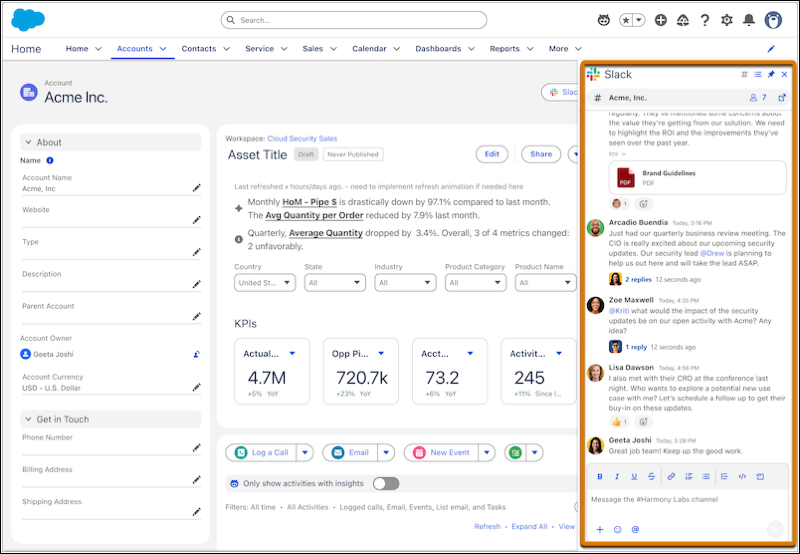
The new Slack panel offers a streamlined way to view and collaborate in Salesforce channels. You can open and close the panel with one click, so it takes up less room on a record page when you aren’t using it.
Where: This change applies to Lightning Experience in Essentials, Starter, Pro Suite, Professional, Enterprise, Unlimited, and Developer editions.
Who: Salesforce channels are available to users with a Salesforce, Salesforce Platform Login, Lightning Platform – One App, Company Community User, or Force.com – App Subscription user license.
How: The Slack panel is available by default for new orgs in Enterprise and Unlimited editions.
Turn Quotes into Orders with Self-Service Checkout
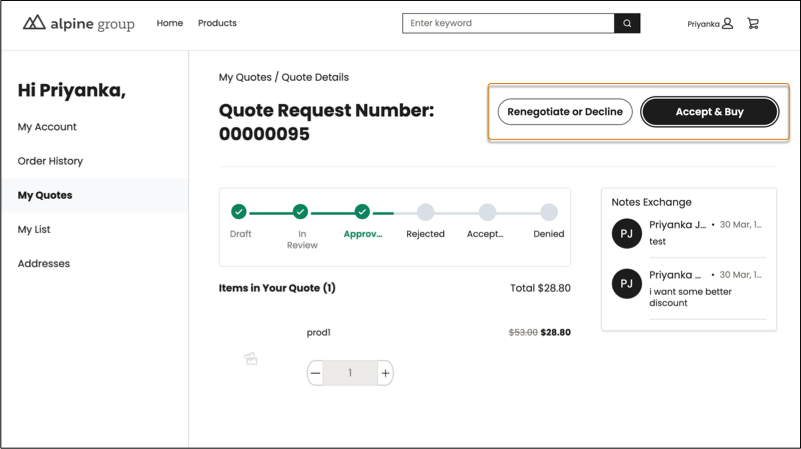
Speed up the purchasing process by letting B2B buyers transition a quote into the cart for checkout. A buyer can move approved quotes to purchase items at negotiated prices without the assistance of a sales rep or copy items from unapproved quotes to purchase them at list price. Get buyer attention sooner by providing authenticated users and unauthenticated guest users an option to request quotes directly from the Product page.
Where: This change applies to B2B Commerce in Enterprise, Unlimited, and Developer editions.
How: In Experience Builder, drag the Request Quote component to your Product Detail page. To move an approved quote to the cart, buyers open the quote and click Accept & Buy. To add the Request for Quote button to the Product page, remove the Product Detail Purchase Options component and add it again. In the container slot, drag in the Request Quote for Product component. Then, select Product Detail Purchase Options and under Add to List Button, select Show as Link.
Experience Cloud
Customize Screen Flows with More Style Overrides
Tailor screen flows to your audience with expanded styling options. You can now customize the look and feel of more screen flow components. The new supported components are Action Button, Address, Choice Lookup, Dependent Picklists, Email, Lookup, Name, Phone, Slider, Toggle, and URL.
Where: This change applies to Aura, LWR, and Visualforce sites accessed through Lightning Experience and Salesforce Classic in Essentials, Professional, Enterprise, Unlimited, and Developer editions. You must have at least one active community license to use this feature.
How: In a screen element, select a component. Select the Style tab to view the customization options. The styling changes you set override your org’s or Experience Cloud site’s default theme.
Upload Larger Files to Experience Cloud Sites
You can now upload files up to 10 GB to an LWR site via the File Upload component. Previously, the limit was 2 GB.
Where: This change applies to LWR sites accessed through Lightning Experience and Salesforce Classic in Enterprise, Performance, Unlimited, and Developer editions.
Customization
Review Field Access Across Profiles, Permission Sets, and Permission Set Groups
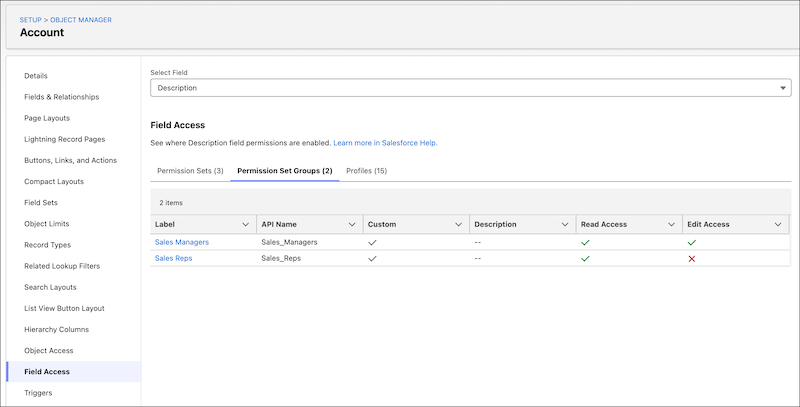
Save time by reviewing field-level security for a specific field in all profiles, permission sets, and permission set groups. Instead of going to individual Setup pages, you can view this information in one place in the Field Access Summary in Object Manager.
Where: This change applies to Lightning Experience in Professional, Enterprise, Performance, Unlimited, Developer, and Database.com editions.
How: In Setup, go to Object Manager, and then select an object. In the sidebar, select Field Access. Select a field to review how its access is configured.
Track Permission Dependencies More Easily
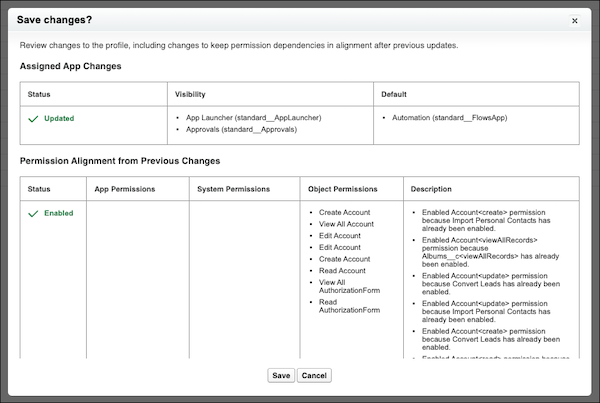
When you update permissions or apps in the enhanced profile user interface, you see any additional changes required to keep dependent permissions in alignment after previous updates. Previously, these changes occurred in the background, but were visible only in the Setup Audit Trail.
Where: This change applies to Lightning Experience and Salesforce Classic in Essentials, Professional, Enterprise, Performance, Unlimited, Developer, and Database.com editions.
How: After you save changes to user permissions, object permissions, or assigned apps, review any additional permission changes.
Enable Profile Filtering (Release Update)
To improve the security of your Salesforce org, the Profile Filtering setting is enabled by default. Profile filtering prevents users from viewing profile names other than their own unless they’re assigned the View All Profiles permission. If a user’s role requires them to see all profile names, assign them the View All Profiles permission before this release update is enforced. This update is available starting in Summer ’26.
Where: This change applies to Lightning Experience and Salesforce Classic in Essentials, Professional, Enterprise, Performance, Unlimited, Developer, and Database.com editions.
When: Salesforce enforces this update in Winter ’27. To get the major release upgrade date for your instance, go to Trust Status, search for your instance, and click the maintenance tab.
How: To review this update, go to Release Updates in Setup. For Enable Profile Filtering, follow the testing and activation steps.
Review Updated Label Translations
To improve accuracy and your users’ experience, we updated the translations for some standard object, tab, and field names for these languages: Chinese (Simplified), Dutch, Finnish, German, Hebrew, Italian, Japanese, Korean, Norwegian, Russian, Spanish, and Spanish (Mexico).
Where: This change applies to Lightning Experience, Salesforce Classic, and the Salesforce mobile app in Group, Essentials, Starter Suite, Pro Suite, Professional, Enterprise, Performance, Unlimited, and Developer editions.
How: See Review Spring ’26 Updated Label Translations and download the attached list of changes. To use a different translation for tab and field labels, you can change the name.
Manage List View Sharing and Editing with Granular Permissions
Assign the new Manage Shared List Views user permission so that users can share their personal list views with roles, groups, and territories that they’re members of. Previously, to share list views, a user needed the Manage Public List Views user permission, which grants broad access to edit or delete any public list view in Salesforce. Now, users can share their own list views without access to manage every public list view.
Where: This change applies to Lightning Experience in all editions.
How: To assign the Manage Shared List Views user permission, add it to a permission set or a user profile.
Users with the Manage Shared List Views permission can edit and delete list views that other users share with them. To let users without the Manage Shared List Views permission edit the list views shared with them, such as the applied filters and list view name, in User Interface Settings, select Shared list view editing.
Security
Review and Comply with New and Upcoming Security Requirements
To protect against evolving cybersecurity threats, Salesforce strengthens security controls. Salesforce requires email domain verification to send email. Starting in June 2026, Salesforce enforces other controls, including Multi-Factor Authentication (MFA) for all users, phishing-resistant MFA for Salesforce admins, and login IP address restrictions. And in Winter ’27, Salesforce retires the OAuth 2.0 username-password flow for connected apps.
Where: This change applies to Lightning Experience, Salesforce Classic, and all versions of the Salesforce mobile app. Review each requirement for scope and edition notes in the linked articles.
When: Effective dates vary by security control.
- Email domain verification is required on a rolling basis starting in March 2026. See Mandatory Sending-Email Domain Verification Timeline.
- Salesforce requires additional security controls starting in June 2026.
- In Winter ’27, Salesforce retires the OAuth 2.0 username-password flow for connected apps. The Winter ’27 deployment starts in August 2026 for sandboxes and in September 2026 for production.
Why: For more information on the requirement for email domain verification, see Verify Your Email Domain Ownership.
Here are some of the additional security controls that take effect in June 2026. For more information, see Prepare for New Security Control Requirements in June 2026.
- MFA for all employee license users, including MFA for sandbox access. This requirement applies to Salesforce direct UI and single sign-on (SSO) logins, including previously exempted users.
- Phishing-resistant MFA for Salesforce admins.
- Step-up verification for sensitive actions, including some report downloads.
- Restrictions on login IP addresses in profiles.
In Winter ’27, Salesforce retires the OAuth 2.0 username-password flow for connected apps. See Retirement of OAuth 2.0 Username-Password Flow for Connected Apps (Release Update).
Retirement of OAuth 2.0 Username-Password Flow for Connected Apps (Release Update)
In Winter ’27, we’ll stop supporting the OAuth 2.0 username-password flow for connected apps. This update will break all connected app integrations that use this flow. For better security, update your integrations to use the OAuth 2.0 web-server flow or the OAuth 2.0 client credentials flow instead.
Where: This change applies to Lighting Experience and Salesforce Classic in all editions. If you don’t see this release update, you already have the username-password flow blocked, and this change doesn’t affect you.
When: Salesforce enforces this update in Winter ’27. To get the major release upgrade date for your instance, go to Trust Status, search for your instance, and click the maintenance tab.
Why: This update improves security and better protects your Salesforce data. The username-password flow directly passes the user’s credentials in HTTP requests, which presents security risks.
How: All connected app integrations that use the username-password flow will no longer work. As an app developer, update your integrations to use a more secure flow. For end user login and authorization, use the OAuth 2.0 web-server flow with the Proof Key for Code Exchange (PKCE) extension. For server-to-server integrations, use the OAuth 2.0 client credentials flow. For apps that you didn’t develop, contact the app developer.
To review this update, from Setup, in the Quick Find box, enter Release Updates, and then select Release Updates. For Retirement of OAuth 2.0 Username-Password Flow for Connected Apps, follow the testing and activation steps.
Read more

Marketing Cloud Next implementation: how the project unfolds with Ceili
Ceili has delivered numerous Salesforce Marketing Cloud Next and Data 360 implementations for organizations across the board: from manufacturing and professional services to IT, financial

Ceili Winter ’27 Release Notes
Intro Here is Ceili’s traditional summary of the upcoming new features and changes in Salesforce’s Winter ’27 release. Salesforce publishes an update three times a

AI-Assisted Salesforce Development at Ceili
AI-assisted Salesforce development makes the design, build, testing and documentation of Salesforce projects more efficient. At Ceili, AI supports our experts in Salesforce implementations, ongoing